Showing posts with label AP. Show all posts

Sunday, April 12, 2020

R12 Extend Modify R12 Payment Instructions Disbursement XML

IBY_FD_EXTRACT_EXT_PUB is a standard PL/SQL package that is used to extend (i.e. add additional tags to) the XML file generated during a R12 Oracle Payments ‘Payment Process Request’.

This XML file is then used as the data source for the XML Publisher cheque or electronic file presentation layout.

To understand how to use IBY_FD_EXTRACT_EXT_PUB, we have to understand the structure of the XML file created by the Payments process request.

There are 4 main levels to the file. These are:

Top Level: Outbound Payment InstructionThis is the top level of the XML File and there is one Outbound Payment Instruction per Payment process request.

Level 2: Outbound Payment:
This is the Payment Level i.e. an individual cheque or BACS payment amount to a supplier. There can be multiple Outbound Payments per Outbound Payment Instruction.

Level 3: Document Payable:
Details the documents (i.e. invoices) being paid. There can be multiple Document Payable tags per Outbound Payment

Level 4: Document Payable Line:This level details the invoice line. There can be multiple Document Payable Line tags per Document Payable.

Additional XML tags can be added at each of these 4 levels by coding different PL/SQL functions in IBY_FD_EXTRACT_EXT_PUB.

The following table lists the functions you need to modify to add additional tags to each level of the XML file:

XML File LevelIBY_FD_EXTRACT_EXT_PUB
Function To Modify
Example of Parameter Usage
OutboundPayment
Instruction
Get_Ins_Ext_Agg
(p_payment_instruction_id IN NUMBER)
SELECT * FROM iby_pay_instructions_all
WHERE payment_instruction_id =
P_payment_instruction_id;
OutboundPaymentGet_Pmt_Ext_Agg
(p_payment_id IN NUMBER)
SELECT * FROM iby_payments_all ipa
WHERE ipa.payment_id = p_payment_id;
DocumentPayableGet_Doc_Ext_Agg
(p_document_payable_id IN NUMBER)
SELECT * FROM iby_docs_payable_all dp
WHERE dp.document_payable_id =
P_document_payable_id;
DocumentPayable
Line
Get_Docline_Ext_Agg
(p_document_payable_id IN NUMBER,
P_line_number IN NUMBER)

PaymentProcess
Profile
Get_Ppr_Ext_Agg
(p_payment_service_request_id IN NUMBER)
SELECT * FROM iby_pay_service_requests
WHERE payment_service_request_id =
p_payment_service_request_id;

As shown in the example below, it is best practice to group all of your custom tags within a parent tag called 'Extend'

EXAMPLE:

The following is an example of adding an 'Extend' tag and some additional invoice data to the ‘DocumentPayable’ level of the XML file:

/*
-- This API is called once per document payable.
-- Implementor should construct the extract extension elements
-- at the document level as a SQLX XML Aggregate
-- and return the aggregate.
--
*/
FUNCTION Get_Doc_Ext_Agg(p_document_payable_id IN NUMBER)
RETURN XMLTYPE
IS
--
v_att1 ap_invoices_all.attribute1%TYPE;
v_att2 ap_invoices_all.attribute2%TYPE;
v_att3 ap_invoices_all.attribute3%TYPE;
v_detail_line VARCHAR2(255);
v_result XMLTYPE;
--
BEGIN
--
SELECT ai.attribute1,ai.attribute2,ai.attribute3
     INTO v_att1, v_att2, v_att3
   FROM iby_docs_payable_all dp,ap_invoices_all ai
WHERE 1=1
     AND dp.calling_app_doc_unique_ref2 = ai.invoice_id
     AND dp.document_payable_id = p_document_payable_id;

v_detail_line := xxcsd_build_inv_line(p_document_payable_id);

--build the XML string
SELECT XMLConcat(XMLElement("Extend",
XMLElement("XXCSD_INVOICE_DFF1", v_att1),
XMLElement("XXCSD_INVOICE_DFF2", v_att2),
XMLElement("XXCSD_INVOICE_DFF3", v_att3),
XMLElement("XXCSD_INV_DETAIL", v_detail_line) ) )
INTO v_result
FROM dual;

RETURN v_result;
--
END Get_Doc_Ext_Agg;

As shown above; 4 new tags added are - ‘XXCSD_INVOICE_DFF1’, ‘XXCSD_INVOICE_DFF2’, ‘XXCSD_INVOICE_DFF3’ and ‘XXCSD_INV_DETAIL’ to the XML File:
These new XML tags can now be referenced in XML Publisher e-Text template and added to cheque or electronic payment file layout.

Saturday, February 22, 2020

Oracle EBS R12 Procure to Pay Process


It is a Seven steps Procure to Pay process which will help you:
  • To Overview Procure to Pay complete process step by step.
  • To describe the Procure to Pay flow from Requisition creation to make payment and transfer to General Ledger with each steps and examples.
  • To provide reference material and definitions with snapshots.
Graphical flow diagram with steps:


Step-1 Create Requisition

What is Requisition? Requisitions represent demand for goods or services.
The Purchase Requisition will be raised whenever an Item needs to be ordered from the Vendor.
Navigation: Purchasing Responsibility > Requisitions > Requisitions

Click on this and below Requisition form will open.

In Requisitions form enter following information:
  • Select Operating Unit for the destination organization.
  • Select Type as Purchase Requisition.
  • Enter the description, if any for this requisition.
  • To select the item to be placed on requisition, click the Catalog button by keeping the cursor in the lines region.
  • Enter other required information as shown

Requisition Approval

After saving the requisition, click Approve button. This will send the requisition for approval as per Red highlighted.

After selecting the Approve button in Requisitions window, approve documents window opens.

Select the Submit for Approval checkbox to send the requisition for approval as per Red highlighted.

Requisition have been created, now next step is creating Purchase Order.

Step-2 Creating Purchase Order

Types of Purchase orders:

Oracle Purchasing supports four types of purchase orders
1.Standard PO: A Standard PO is created for one–time purchase of various items.
2.Planned PO: A Planned PO is a long–term agreement committing to buy items or services from a single source. You must specify tentative delivery schedules and all details for goods or services that you want to buy, including charge account, quantities, and estimated cost.
3.Blanket Agreement: A Blanket PO is created when you know the detail of the goods or services you plan to buy from a specific supplier in a period, but you do not know the detail of your delivery schedules.
4.Contract Agreement: Contract purchase agreements are created with your suppliers to agree on specific terms and conditions without indicating the goods and services that you will be purchasing.
Auto Create Purchase Order
There are several methods that can be used to create purchase orders. You can manually create purchase orders or search approved requisitions and add them to purchase orders. Here is Auto create purchase order.
Navigation: Purchasing responsibility à Auto create
All purchase requisitions will appear in the Auto create window of the buyer.


In Find Requisition Lines window Operating Unit, Buyer and Approved status appears as yes.

Buyer can search the requisition lines that are to be placed on Purchase Order based on various criteria.

After searching the required requisition i.e. after selecting the Find button on Find Requisition Lines window, Auto create Documents window opens.


With the help of Auto create Documents window, you can create following documents:

Standard Purchase Order
Blanket Release
Sourcing RFQ.

Automatic: For automatic creation mode use the checkboxes to select the requisition lines that you want to use on the document and then select automatic button. You can also use Select All or Deselect All in Edit Menu.
Manual: For manual creation mode select manual button. It is available only when you have chosen Default grouping for Standard Purchase Order, blanket releases and RFQs.
  • If you select manual creation mode, supplier is not defaulted. In case of automatic creation supplier is defaulted from requisition.

In New document window, Most of the fields defaults, you can enter global agreement number if you want to refer to any global agreement.

Once you click on Create button all requisition information is transferred to Purchase Order Form.

Check all required details in:
  • Lines Tab
  • Price Reference
  • Reference doc
  • More tabs
Sent to Supplier
  • Now PO being sent to Supplier , we can expect the products to be delivered to us. Once items / products are delivered to us we will create Receipt to record the details of the products received.
  • We can create Receipt in purchasing module or inventory module.

Step-3 Inventory Receipt

Receiving?
Using Oracle Purchasing, you can process receipts from suppliers, receipts from other warehouses or inventory organizations, in-transit shipments and receipts due to customer returns. You can search for expected receipts based on a purchase order


Items Receiving
Navigation: Purchasing Responsibility > Receiving > Receipts

Receiving Items and Check Quantity in Inventory
By entering Purchase Order Number

Enable Quantity Receive
After saving click on Header
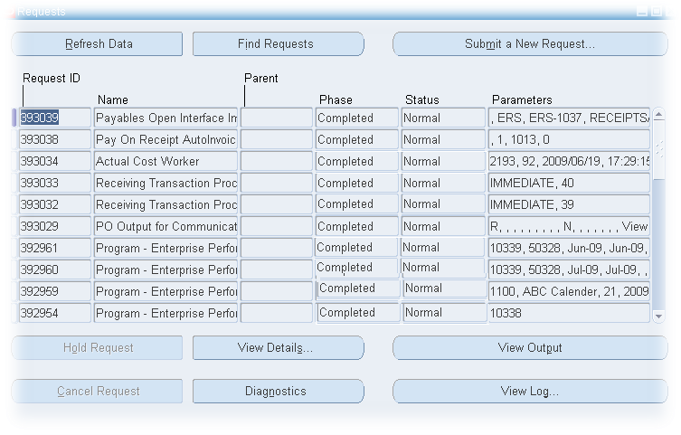
From Purchasing Module Submit Program for Pay on Receipt Auto invoice


Make a note of Invoice Number

Step- 4 Create AP Invoice

Navigation: Invoices> Entry> Invoices
Invoice number can be Query or find from find Window.
Enter Invoice Number:
Validate Invoice

Click Action Button and Enable Validate

Now Status of Invoice is validated

The Purchase Order is Automatically Match to Invoice and PO Number, Receipt Number and Quantity


Step – 5 Make Payment Against Invoices

You can make payment through invoice form just click on Actions button then pay in Full

Enter all payment related details and save it payment will be created.


Step – 6 Create Accounting

Again click on Action button and then click on create accounting. You can create final accounting here.


Step – 7 Transfer to GL

Run Transfer To GL program to transfer this payment to GL.

Procure to Payment process has been completed.